Account Setup
Configure your CallScaler account settings, profile, and preferences.
Your Profile
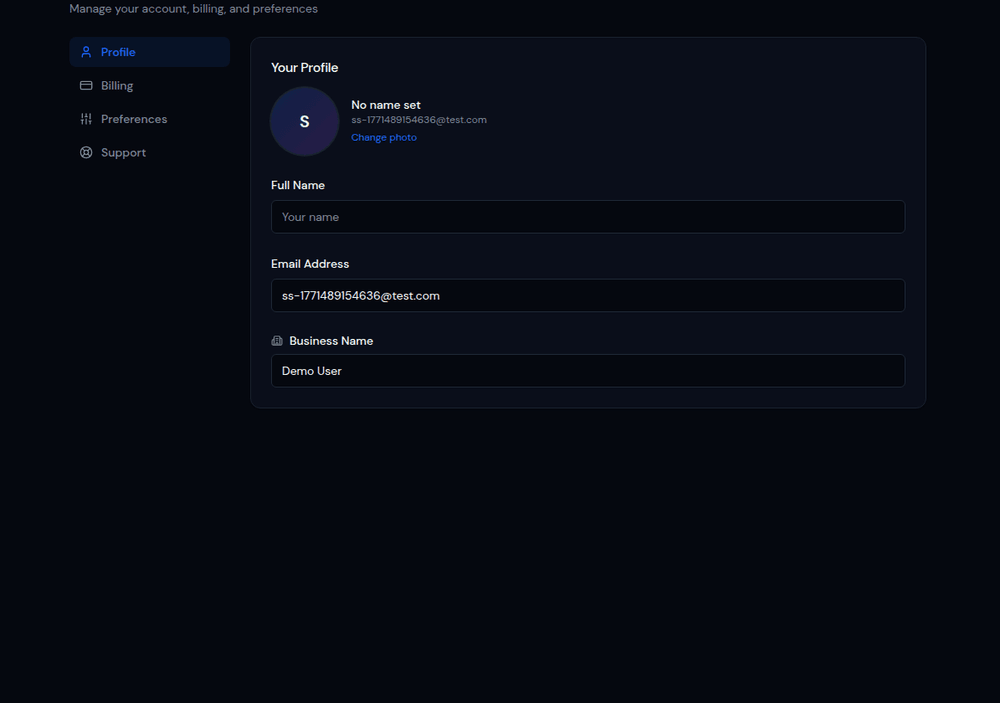
After signing up, head to Settings in the sidebar to customize your account. You can update your name, email address, and profile picture. Your profile information is visible to other team members in your business.
Email Notifications
CallScaler can send you email notifications for missed calls, voicemails, and new form submissions. Configure these in Settings → Notifications. You can choose to receive instant notifications or a daily digest.
Theme Preferences
CallScaler supports three themes: Light, Dark, and Psychedelic. Switch between them in Settings → Preferences → Theme. Dark mode is the default and is easier on the eyes during long sessions. Psychedelic mode adds colorful gradients for a more vibrant experience.
Two-Factor Authentication
For extra security, enable two-factor authentication (2FA) from your profile settings. When enabled, you'll need to enter a code from your authenticator app every time you log in.
We strongly recommend enabling 2FA, especially if you have billing or admin access.