Google Ads Call Tracking with Automatic Conversion Import
Close the attribution loop. When a Google Ads click turns into a phone call, CallScaler sends the conversion back to Google Ads — including gclid, call duration, and lead score. Your Smart Bidding gets smarter.
The bottom line
Last updated: February 2026CallScaler's Google Ads integration matches phone calls to ad clicks via gclid and sends conversions back to Google Ads in real time. You can set conversion rules based on call duration, lead score, or AI qualification status so Smart Bidding optimizes for quality leads, not just any call. Unlike manual CSV uploads or basic integrations, CallScaler posts conversions within minutes of each call. This works alongside CallScaler's keyword-level tracking to show exactly which keywords drive phone revenue.
How it works
Close the loop between ad clicks and phone calls.
Connect Google Ads
Link your Google Ads account to CallScaler. OAuth flow takes 30 seconds.
Configure Conversion Action
Choose which calls count as conversions: all calls, qualified leads only, or calls over a certain duration.
Calls Matched to Clicks
When a call comes in, CallScaler matches it to the original Google Ads click via gclid.
Conversion Sent
The conversion is posted back to Google Ads. Smart Bidding uses it to optimize your campaigns.
Key capabilities
Feed real call data to Smart Bidding for better results.
gclid-Based Matching
Conversions matched to the exact click, keyword, and ad group that generated the call.
Smart Bidding Optimization
Feed real phone lead data to Google's algorithms. Bid more on keywords that generate calls.
Conversion Rules
Only count calls that meet your criteria: minimum duration, lead score threshold, or AI qualification.
Real-Time Postback
Conversions sent within minutes of the call. No daily batches or manual uploads.
Revenue Tracking
Assign conversion values based on lead score or call outcome. Track ROAS for phone leads.
Cross-Platform View
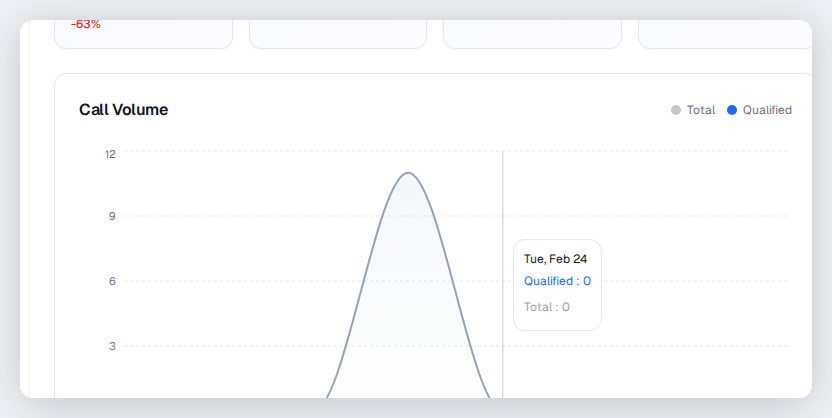
See Google Ads performance alongside call data in CallScaler's dashboard.
Try Google Ads Integration free
No credit card required. Set up in under 60 seconds.
Who uses Google Ads integration?
Any advertiser running Google Ads campaigns that generate phone calls.
Why Google Ads needs call conversion data
Google Ads Smart Bidding optimizes for the conversions you tell it about. If you only report form fills, the algorithm optimizes for form-filling audiences and keywords. It misses the phone call leads entirely. By sending call conversions back to Google Ads, you teach the algorithm that certain keywords and audiences generate phone leads. Over time, Smart Bidding allocates more budget to clicks that produce actual phone calls, improving your cost per lead without manual bid adjustments.
How gclid matching works
When someone clicks your Google Ad, Google appends a gclid (Google Click ID) parameter to the URL. CallScaler's DNI script captures this gclid and stores it with the visitor's session. When that visitor calls, CallScaler matches the call to the original click via the gclid. The conversion is then posted back to Google Ads through the API, telling Google exactly which click produced the call. This is a direct, deterministic match with no modeling or estimation involved. Every reported conversion traces back to a specific ad click.
Setting conversion rules for quality
Control which calls count as Google Ads conversions:
- Minimum call duration filters out accidental dials and wrong numbers (30+ seconds is common)
- Lead score threshold ensures only calls with genuine buying intent are reported
- AI qualification status filters based on the actual conversation content, not just duration
- Duplicate call filtering prevents the same caller from counting as multiple conversions
- Per-campaign rules let you set different criteria for different service lines or offers
- All rules are configured in CallScaler and applied automatically to every call
Optimizing campaigns with call data
Use call conversion data to make smarter campaign decisions:
- Identify keywords with high click costs but strong call conversion rates to justify the spend
- Pause keywords that generate calls but score poorly on lead quality
- Compare conversion rates between call leads and form leads by campaign
- Use audience insights from call data to refine your targeting in Google Ads
- Review the keyword report weekly and adjust bids based on call quality, not just volume
Setup walkthrough
Connect your Google Ads account via OAuth from the CallScaler integrations page, which takes about 30 seconds. Create a conversion action in CallScaler specifying your quality criteria (minimum duration, lead score threshold). CallScaler creates the corresponding conversion action in Google Ads automatically. From that point forward, every qualifying call is posted as a conversion in real time. You can verify the setup by checking the Google Ads conversion tracking status page, where CallScaler conversions appear alongside your other conversion sources.
Google Ads integration best practices
Get the most from your Google Ads call tracking:
- Set a 60-second minimum duration to filter out wrong numbers and hangups
- Use lead score thresholds of 60+ so Smart Bidding optimizes for quality leads
- Create separate conversion actions for different service lines or verticals
- Review conversion data weekly to ensure the integration is posting correctly
Measuring true ROI from Google Ads calls
Combine CallScaler's lead scoring with Google Ads cost data to calculate your true cost per qualified call by keyword. This is a more meaningful metric than cost-per-click or even cost-per-call because it accounts for lead quality. A keyword that costs $50 per click but generates calls scoring 90+ may be a better investment than a keyword costing $10 per click with lead scores of 30.
Troubleshooting Google Ads conversions
If conversions are not appearing in Google Ads, check these common issues:
- Verify the OAuth connection is active on the CallScaler integrations page
- Ensure auto-tagging is enabled in Google Ads so gclid parameters are appended to URLs
- Check that your DNI script is installed and swapping numbers correctly on your landing pages
- Review the conversion rules to make sure your thresholds are not filtering out all calls
Frequently asked questions
Common questions about Google Ads Integration.
Related features
Works great with Google Ads Integration.
Keyword-Level Tracking
Capture gclid, msclkid, fbclid, and UTM parameters automatically. Know which keywords, ad groups, and campaigns generate phone calls — and feed that data back to your ad platforms for smarter bidding.
Learn moreMeta Ads Integration
Send phone call conversions to Meta Ads for Facebook and Instagram campaigns via the server-side Conversions API. Optimize for leads that actually pick up the phone, not just form fills.
Learn moreDynamic Number Insertion
One line of JavaScript. Every website visitor sees a unique tracking number based on how they found you — Google Ads, Facebook, organic, or direct. Visitor-level attribution without changing your site.
Learn moreReady to try Google Ads Integration?
Sign up free and get started in under 60 seconds. No credit card required.